Handle Conflict Files
A conflict file is a rescue rather than an error.
Recognize a conflict file
When both computers save the same file at nearly the same moment, the newer save keeps the file's name. The other version is preserved next to it:
report.docx
report.conflict-20260801-104512-123456789.docx
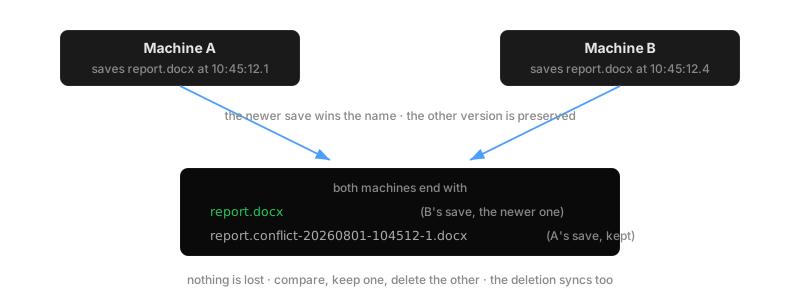
The pattern is <name>.conflict-<UTC date>-<time>-<fraction><extension>. Exactly one appears per collision, and it syncs like a normal file, so both computers hold both versions. Losing an edit silently is the thing this mechanism exists to prevent; it also fires when a save would have overwritten a version whose content this machine never fetched.
Decide which version to keep
- Open both files. The plain name holds the last save; the conflict file holds the other one.
- If the plain name is right, delete the conflict file. The deletion syncs to the peer.
- If the conflict file is right, delete the plain file and rename the conflict file over it (or copy its content across and then delete it).
- If both contain work, merge by hand in the application, save, then delete the conflict file.
Do the resolution on one computer. The result syncs; there is nothing to repeat on the other side.
Avoid conflicts
Conflict files appear only when both sides race on the same file inside a moment. Turn-taking never produces them: one person saves, the other opens later. If you see them often on one file, agree on ownership of that file, or split the work into separate files. There is no setting to tune; the fix is the workflow.
Always-open files are different
A database or a project library that a program holds open continuously is not protected by conflict files; it is many small writes rather than saves. Follow the database hand-off pattern for those: one machine at a time. Background on the whole model: Edits, versions, and conflicts.