How to use KEIBIDROP
Three steps, then it works like a folder. A short clip for each one.
Install KEIBIDROP on both computers. Connect them once: on the same Wi-Fi with one switch, anywhere else by sending a code in any chat app. Then drag a file onto the window and the other person presses Save, or open their files as a folder on your computer and work in your own apps. Files go straight from one computer to the other. There is no account and nothing is uploaded to a cloud.
Connect once
Same Wi-Fi: turn on the switch. Anywhere else: send your code, paste theirs. Both press Connect.
Use it
Drop a file in and they press Save. Or open their files as a folder in any app.
One minute: install, connect with a code, send a file. Silent, with captions.
Connect on the same Wi-Fi
Two computers in the same home or office. This is the quickest way and needs no code.
Open KEIBIDROP on both computers.
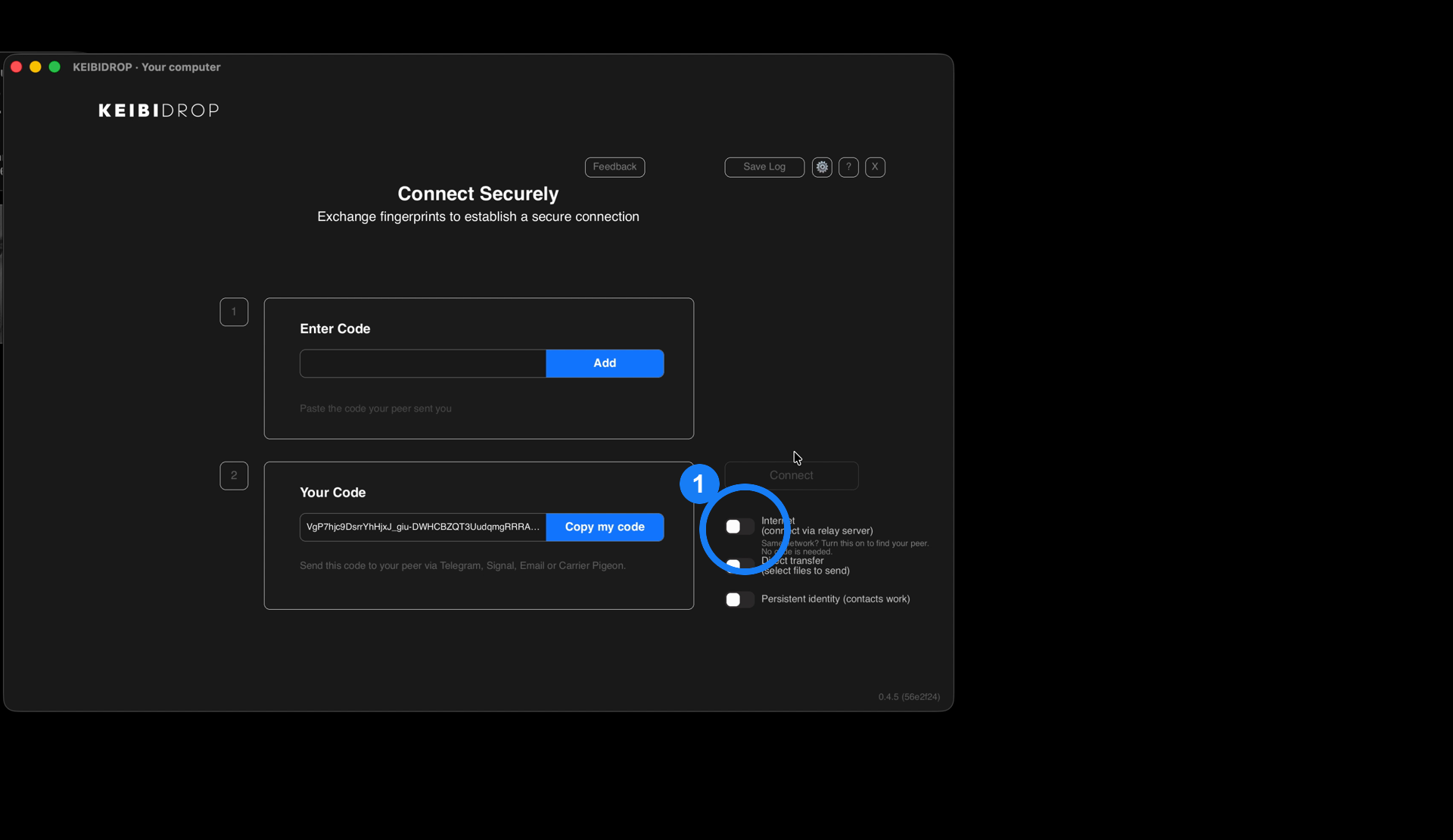
On both, turn on the switch under Connect. The line under it says "Same network? Turn this on to find your peer."
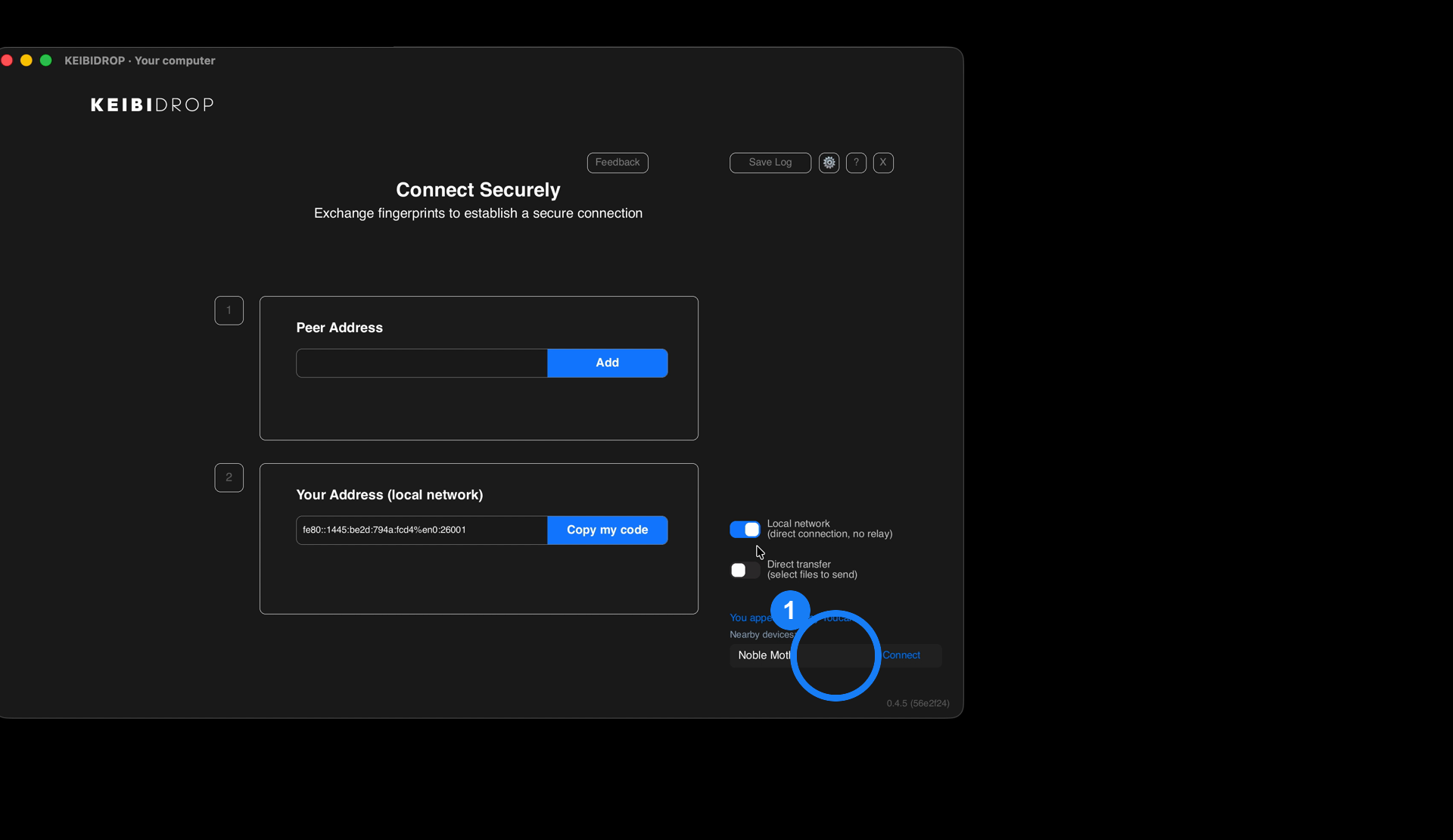
After a few seconds the other computer appears under Nearby devices. Click Connect next to it.
Both screens change to Connected. Skip to send a file or their files as a folder.
Hotel and guest Wi-Fi often keep devices apart from each other. If nothing shows up after ten seconds, use the code instead.
Connect over the internet with a code
Different homes, different cities, different countries. You swap a code once, in any chat app you already use.
Press Copy my code. Your code is now on the clipboard.
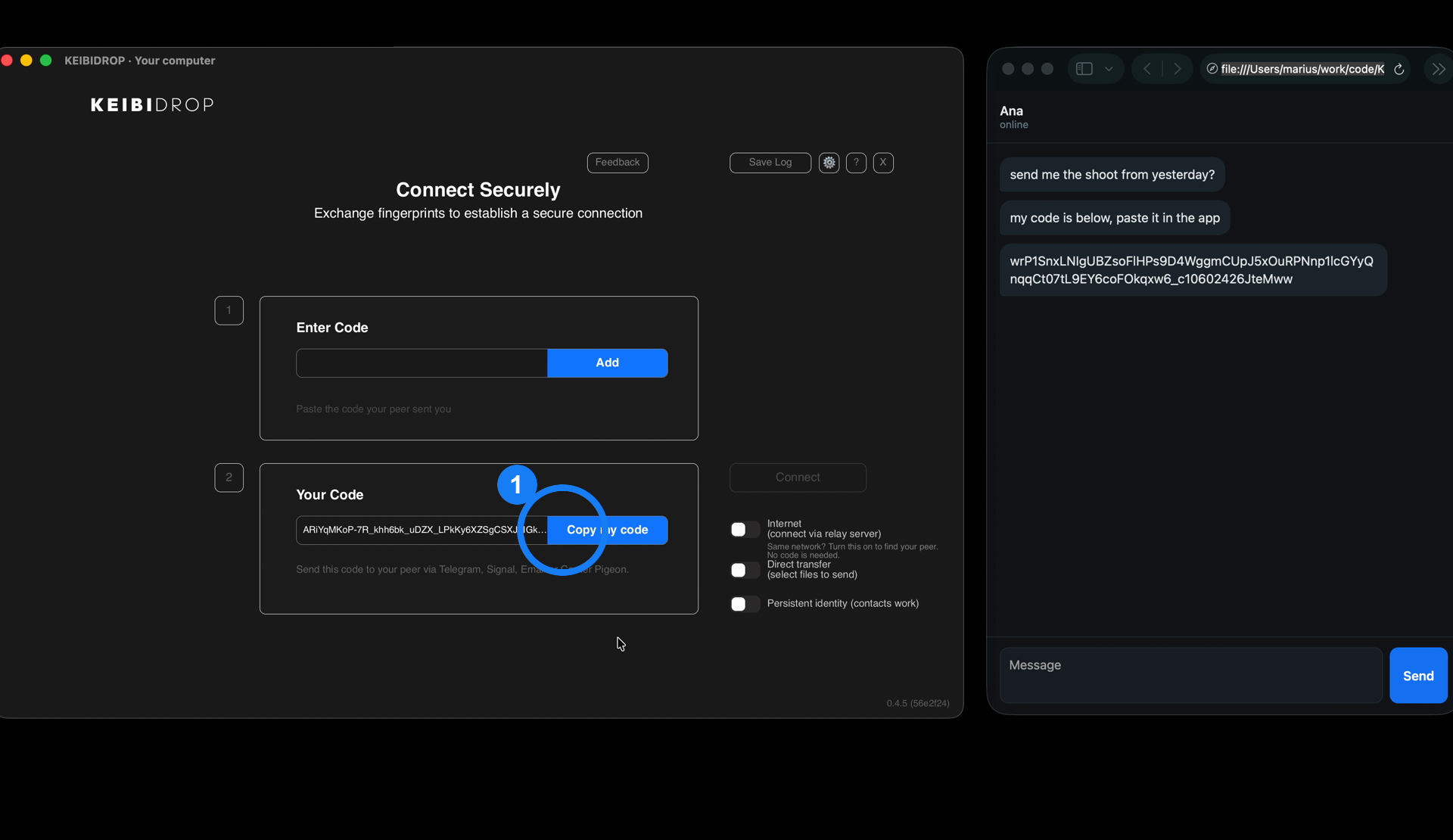
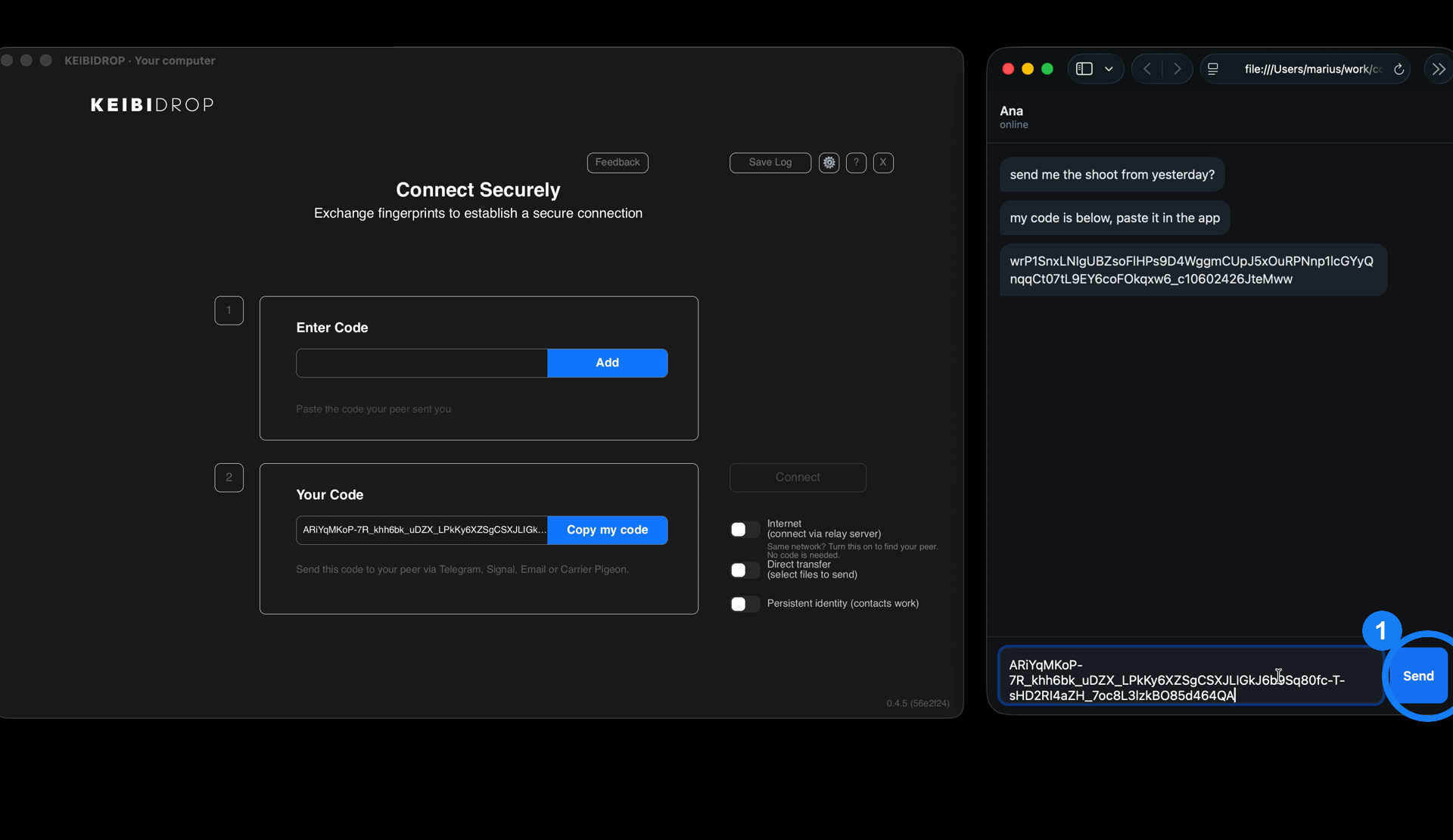
Paste it to the other person in WhatsApp, Signal, Telegram, email, anything. They do the same and send you their code.
Paste their code into the field at the top and press Add. It says "Peer code added".
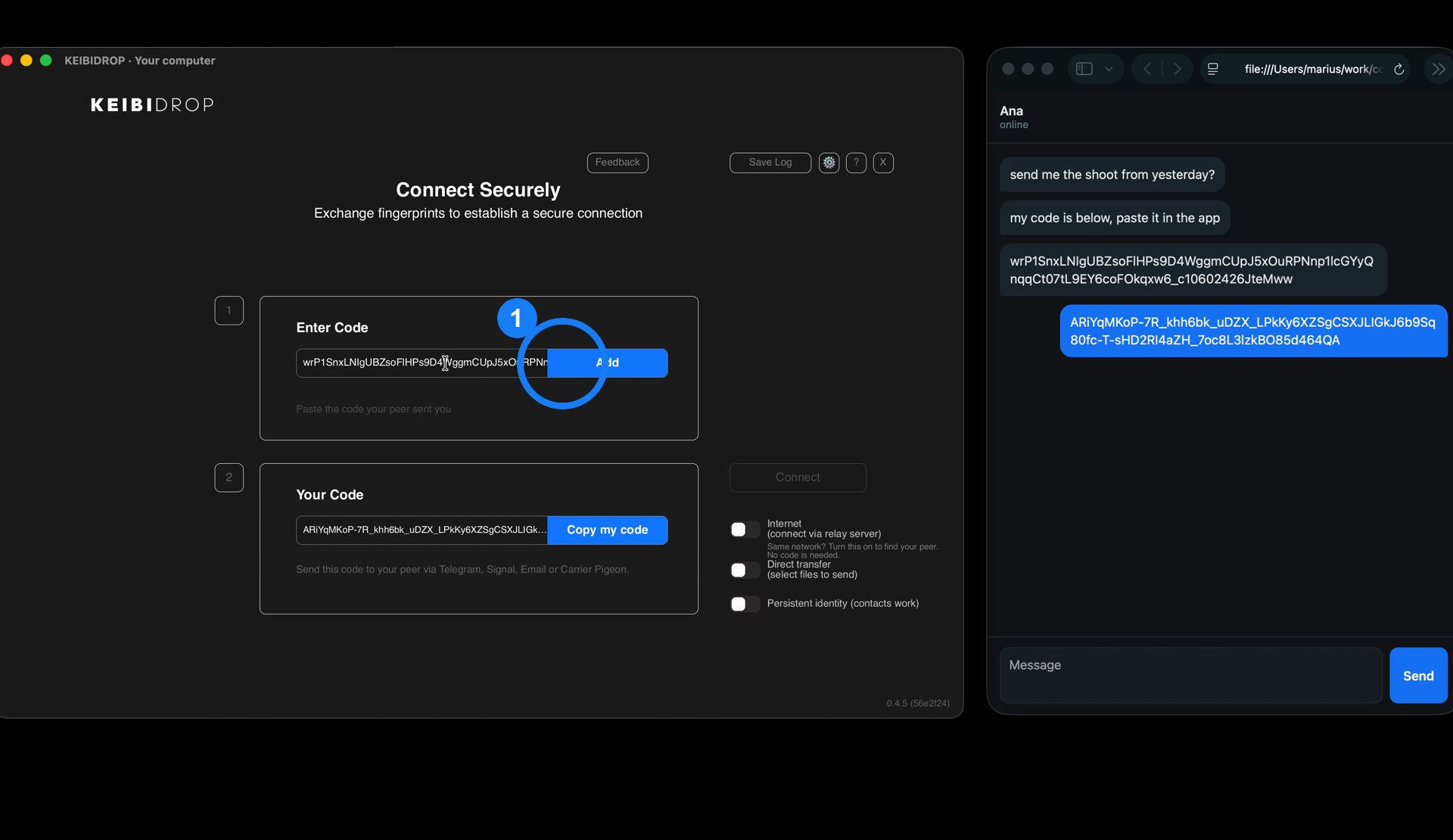
Press Connect. The other person presses Connect on their side. Both are needed.
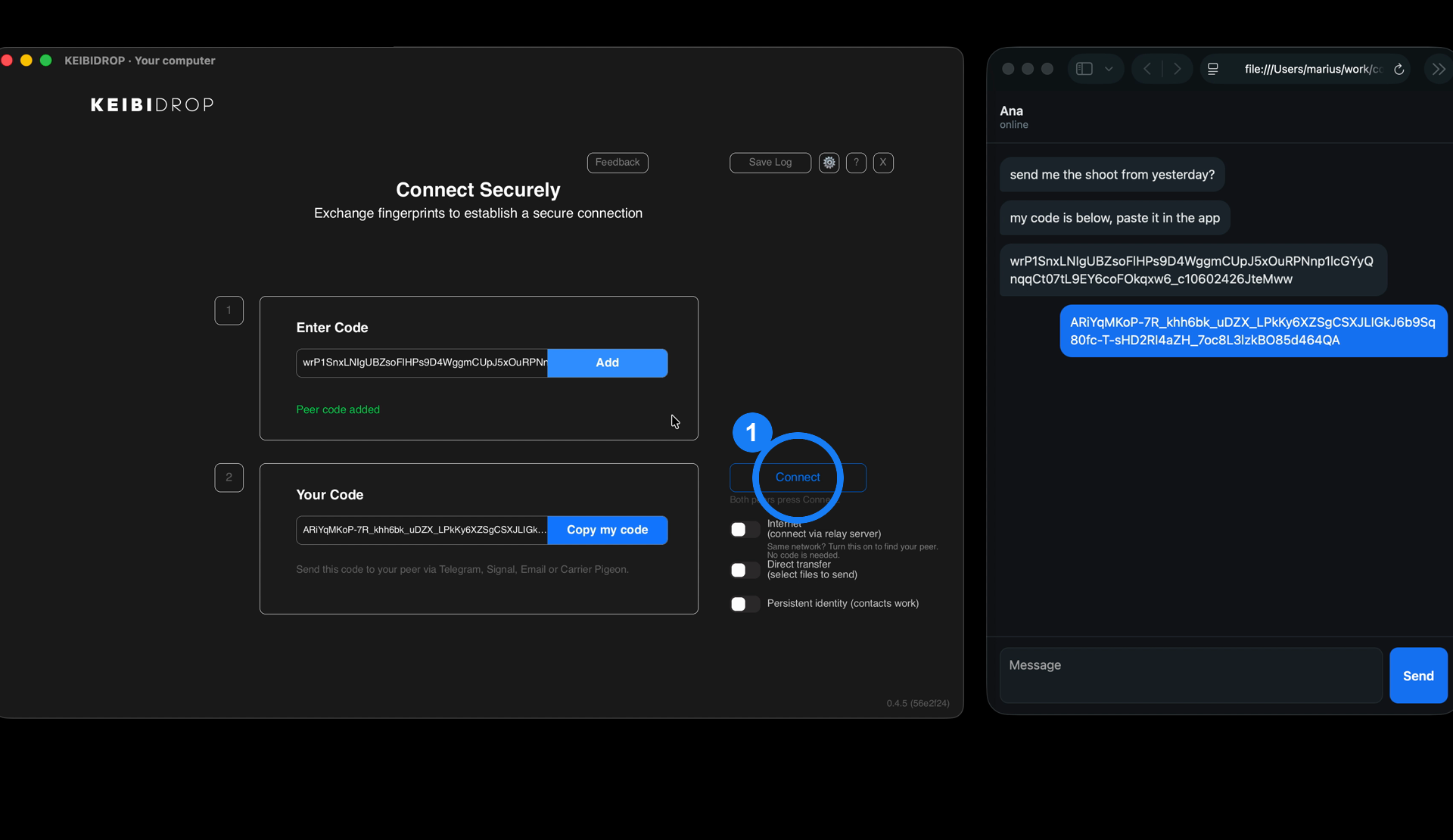
The code is long on purpose. It is the only thing that proves you are talking to that computer and nobody else, so it stays long. You copy and paste it, you never type it.
Send a file, and get one
Drag a file onto the window, or press Add File and pick one. Folders work too.
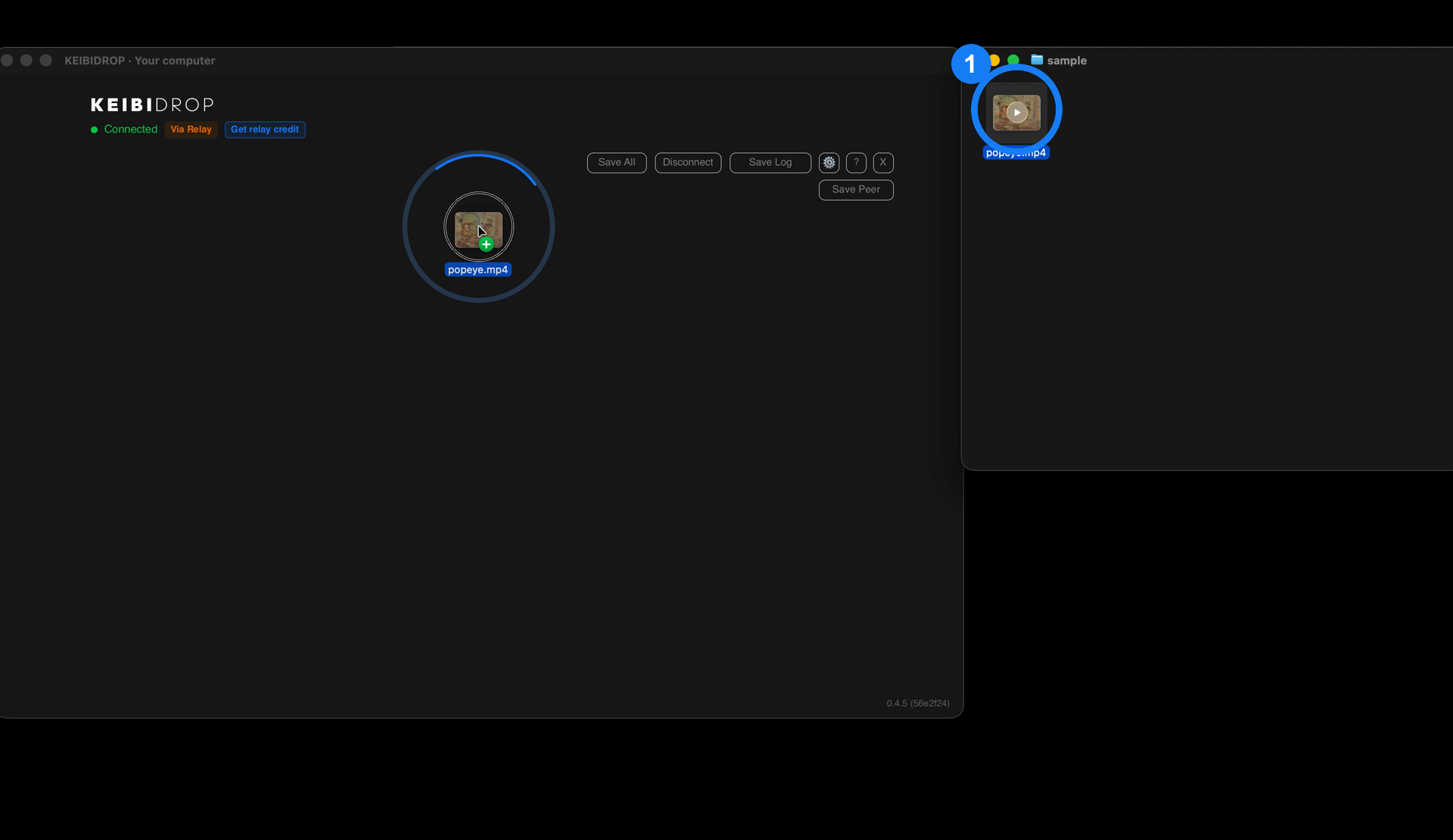
It shows up on the other person's screen right away, with its name and size.
They press Save. The file lands in their Saved Files folder, straight from your computer.
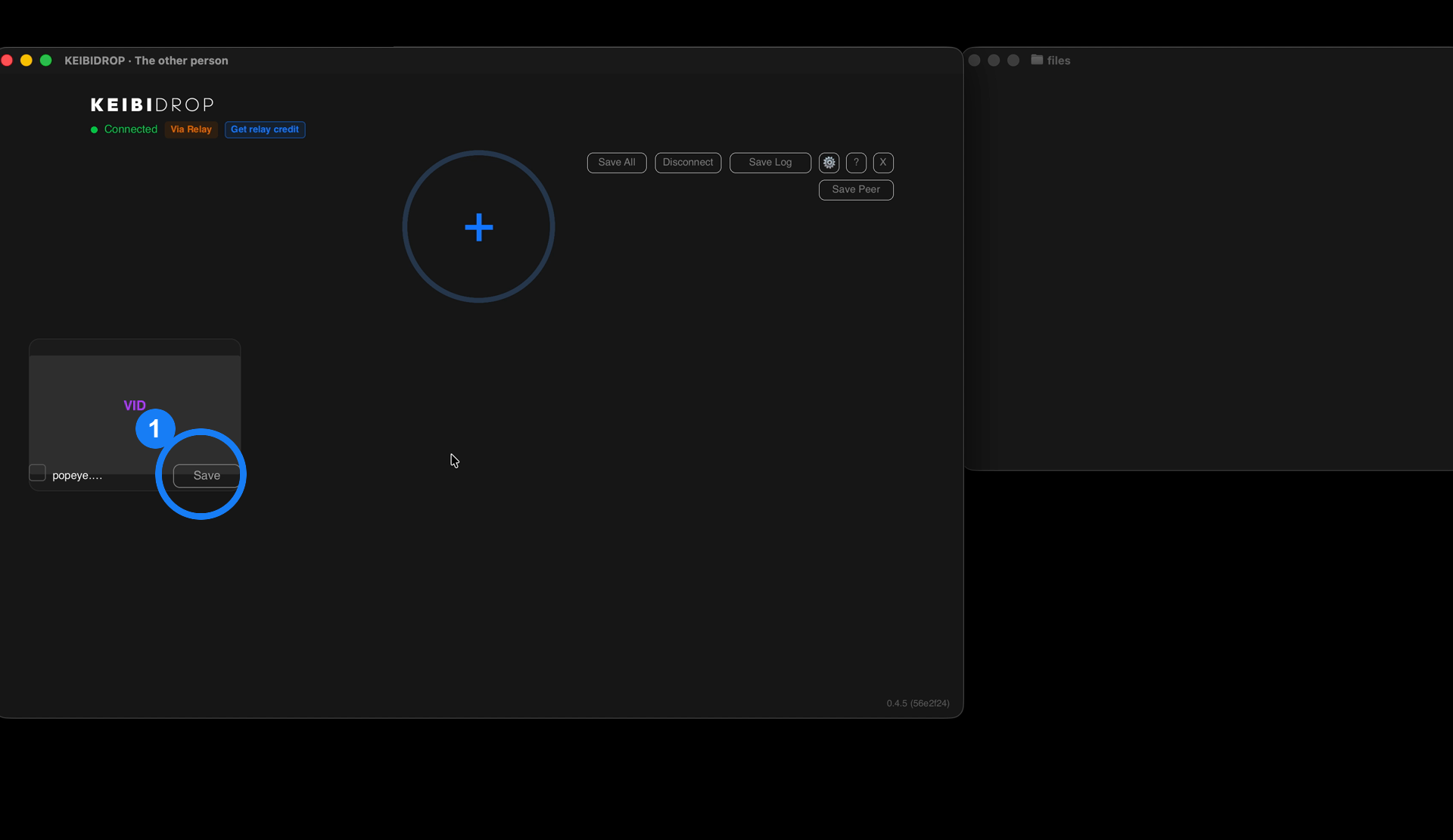
To get a file, do the same the other way round: they add, you press Save. Saved Files opens the folder.
Any size. A big video takes the time your internet needs for its size and nothing more, because it goes directly and once.
Their files as a folder on your computer
Instead of sending files one by one, their shared folder appears on your computer as a normal folder. Open a video, a document or a whole project in your own apps. Only the parts you actually open travel over the internet, so a big file opens right away.
After the first connection the app asks: "Want their files as a folder you can open in any app?" Press the button. On a Mac it takes you to macFUSE, on Windows to WinFsp. Install that once and restart the computer once.
Connect again. The screen says "Shared folder is live". Press Open Folder.
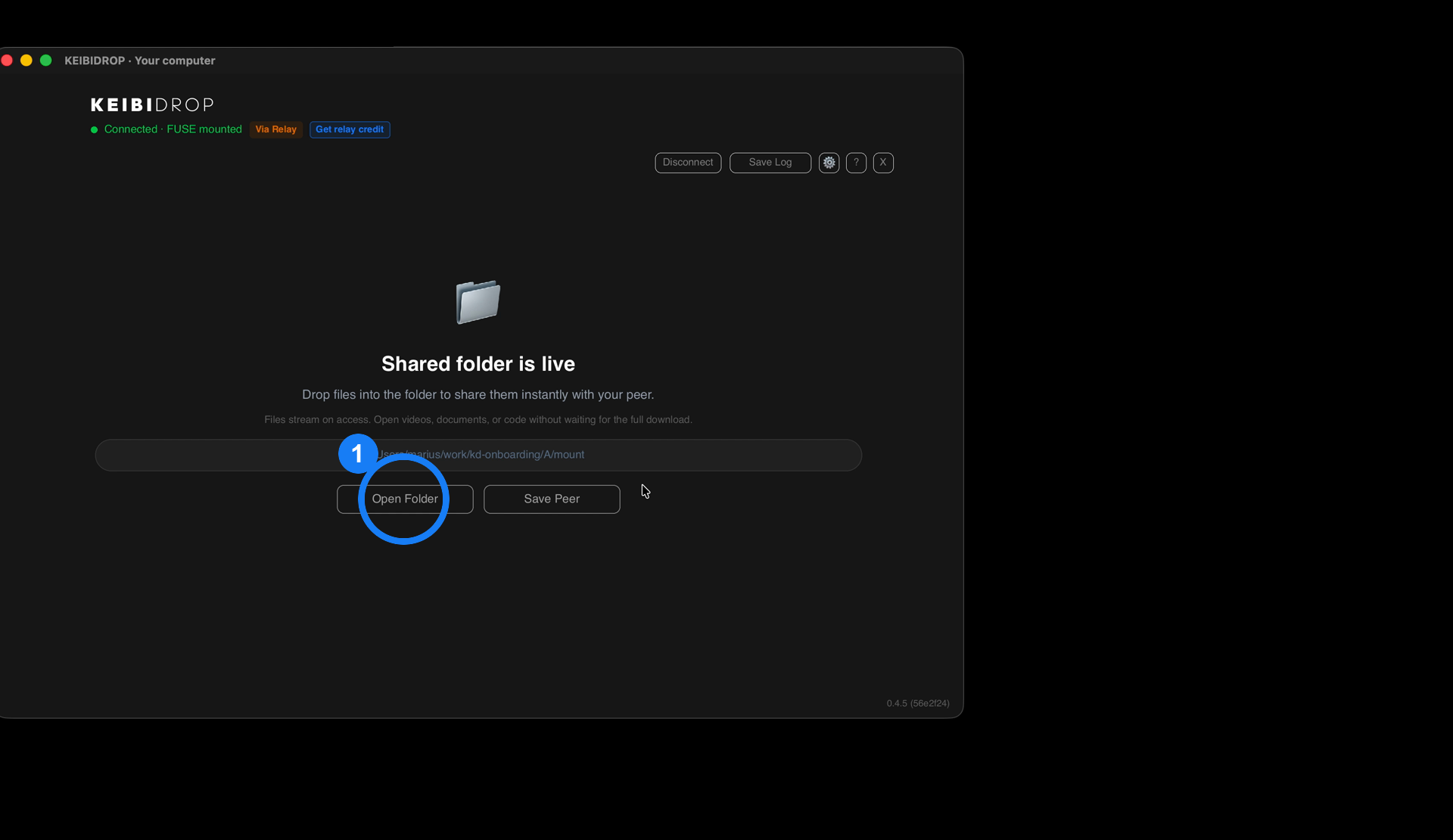
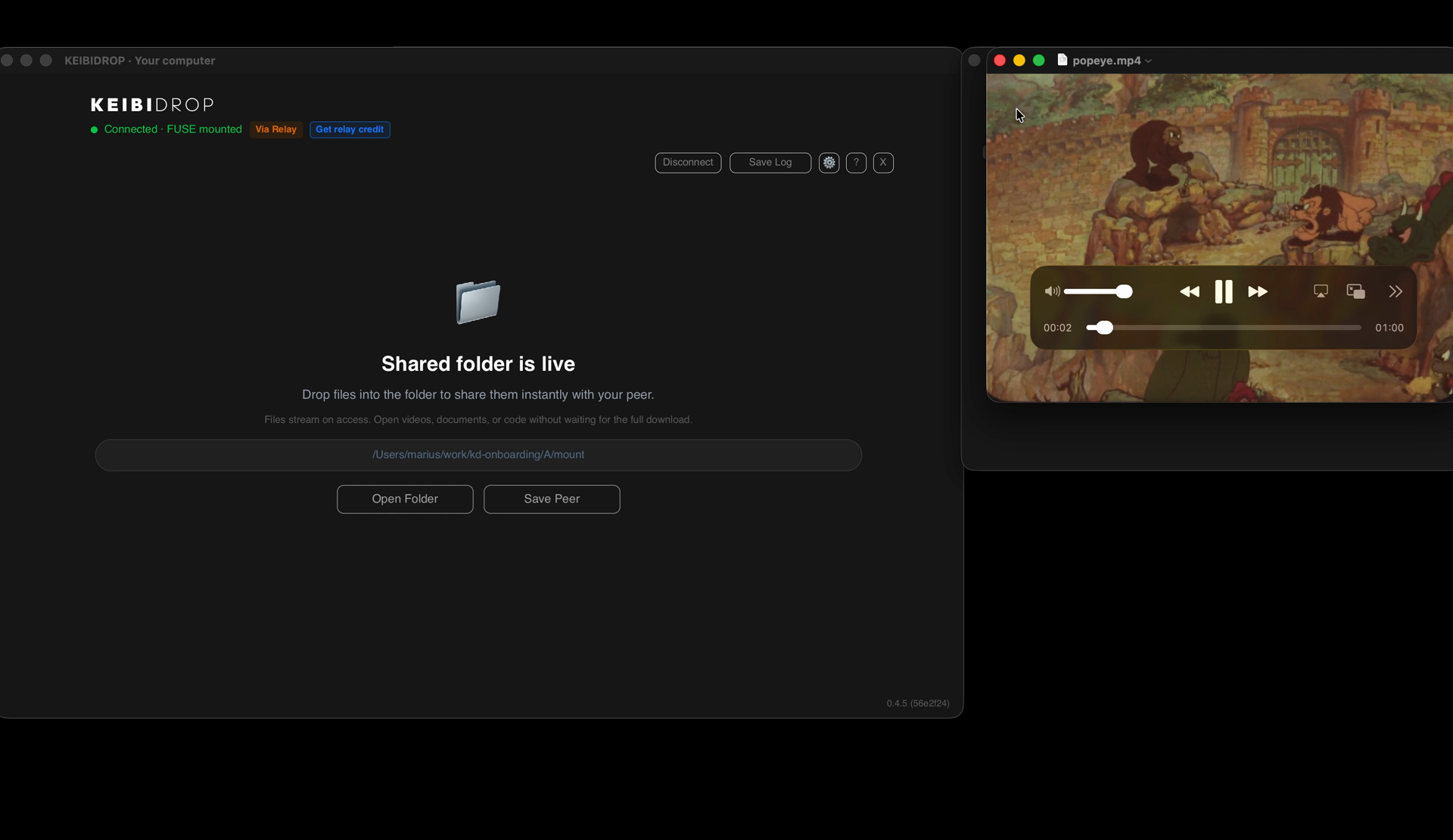
A folder window opens with their files in it. Double-click a video: it plays right away. Drop a file in: it lands on their side.
The one-time driver install is explained click by click on the install page. Without it, sending and saving files works exactly as above.
Save a contact, reconnect with one click
While connected, press Save Peer, type a name, press Save. Ask the other person to do the same.
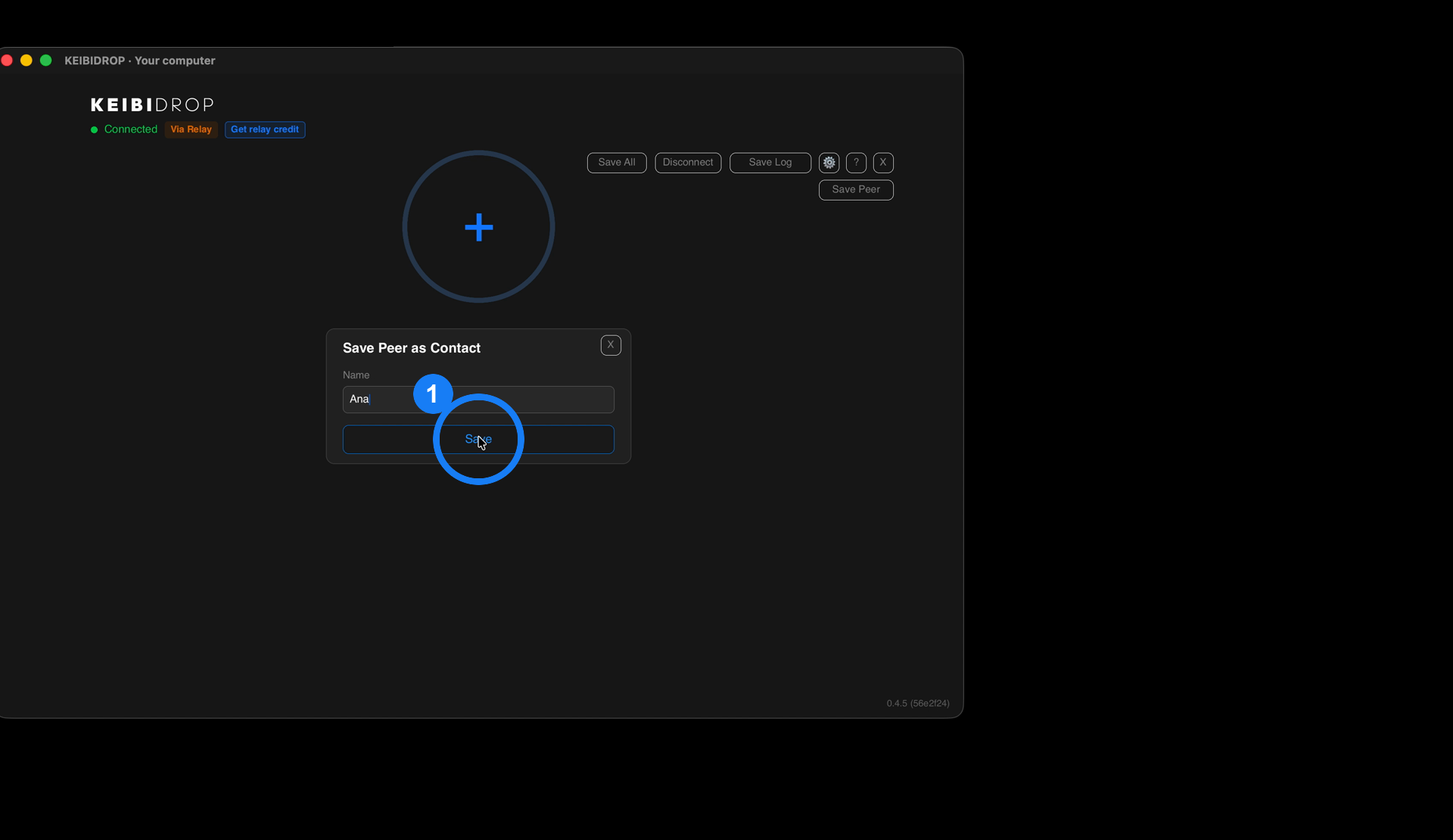
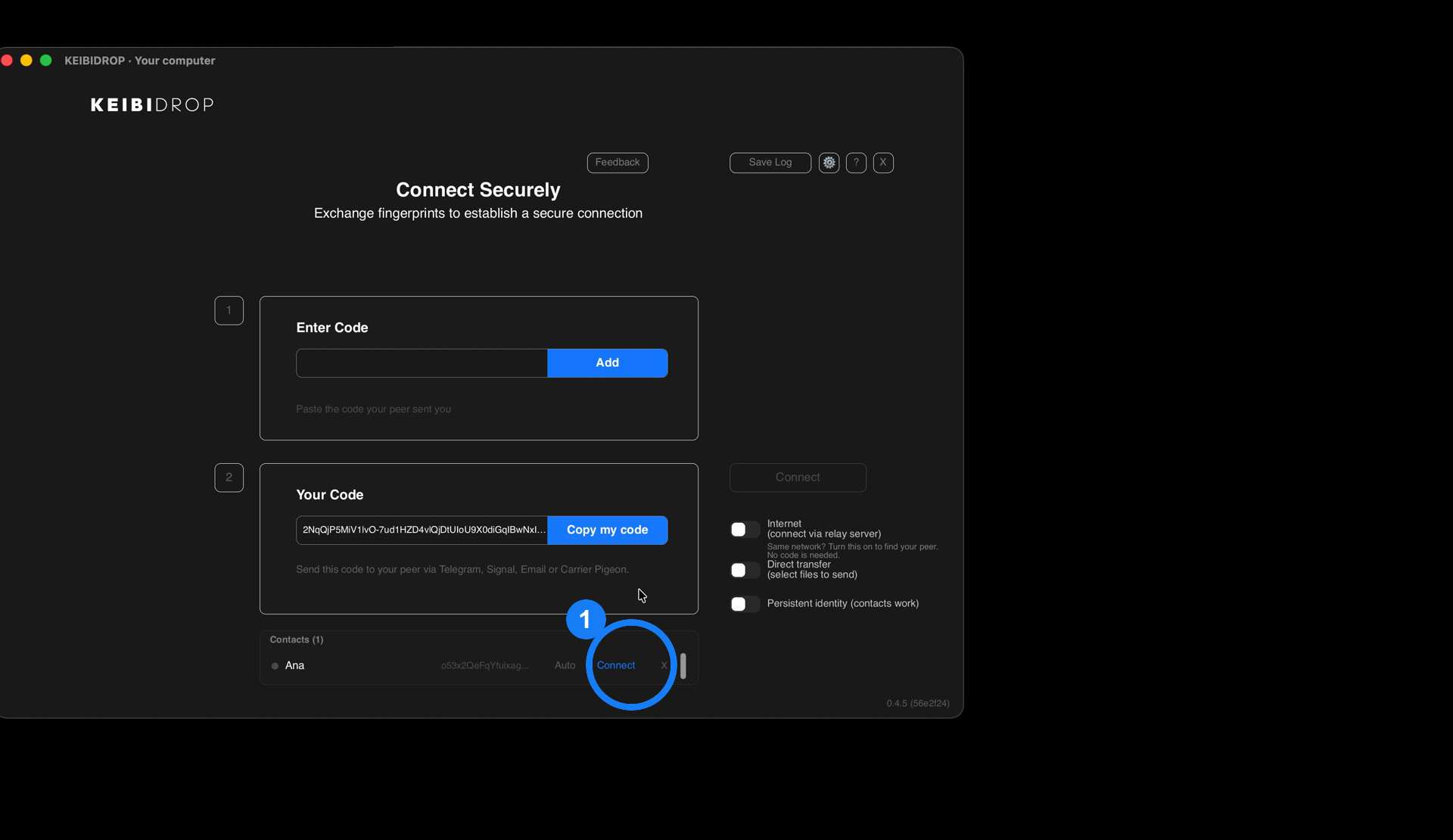
Next time, the name is on the first screen under Contacts, with a green dot when they are online. Click Connect next to it. No codes again.
Phone to laptop
The Android app sends and receives files the same way: open it on the phone, swap the code once, press Send. Install it through F-Droid, click by click on the install page. There is no iPhone app yet.
Fix it when it does not connect
- Both sides pressed Connect? Both are needed, within a few minutes of each other.
- The first connection over the internet can take up to twenty seconds. Later ones are quicker.
- Same Wi-Fi and nothing shows up? The network keeps devices apart. Use the code instead.
- Still stuck: the checklist, or press Feedback in the app and tell us what you saw.