Connect Two Computers
One click on the same network. A one-time code exchange over the internet.
On the same network
In the app: turn on the switch under Connect ("Same network? Turn this on to find your peer. No code is needed.") on both computers. Each computer appears under a temporary name, "Swift Penguin" style. Click Connect next to the other computer.
In the terminal:
keibidrop> discover
You appear as: Swift Penguin
Found 1 device(s):
  [1] Cosmic Waffle  (192.168.1.42:26431)

keibidrop> register 192.168.1.42:26431
keibidrop> connect
The temporary names change every session. Trust on the local network is on first use: connect only to devices you recognize.
If the network isolates its clients (guest and hotel WiFi often do), discovery finds nothing. Use the internet path below instead.
Over the internet
Each installation has a fingerprint: an 86-character code that is its identity. To connect, the two of you swap fingerprints once, over a channel you trust (Signal, or any messenger you both use).
- Both: copy your own fingerprint and send it to the other person. In the app it is on the connect screen. In the terminal:
show fingerprint. - Both: paste the received code. In the app: the "Paste the code your peer sent you" field shows "Peer code added". In the terminal:
register <fingerprint>. - Both: press Connect (terminal:
connect). The two sides find each other through the relay and connect directly, or through the bridge when direct is impossible.
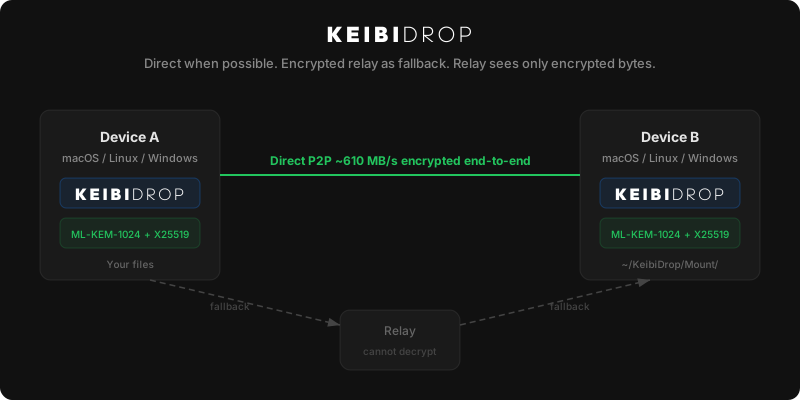
The code exchange is the security step. Send the fingerprint over a channel where you know who is on the other end. There is no separate verification ceremony after it.
Which network path you got (LAN, direct, or bridge) shows in the app's mode badge, or with peer-info.
Add and manage contacts
A contact is a saved peer. Contacts skip the code exchange on later connections.
Save the peer you are connected to
In the app: press Save Peer and give the contact a name. In the terminal:
keibidrop> save-contact Alice
Do this on both sides. Quick reconnects need each side to have saved the other.
Add a contact from a code, without connecting
If someone sent you their fingerprint, you can save it directly in the terminal or with kd:
keibidrop> add-contact Alice 86-CHARACTER-CODE

kd add-contact Alice 86-CHARACTER-CODE
List and remove
In the app, contacts appear on the connect screen; the X next to a contact removes it. In the terminal:
keibidrop> contacts
keibidrop> remove-contact 86-CHARACTER-CODE
Saved contacts show an online indicator. Online status comes from a presence signal sent every 30 seconds. If you want no presence signal, use incognito mode or save no contacts. Contacts are stored encrypted on your disk (where); incognito mode has no contact list.
Reconnect with one click
In the app: click Connect next to the contact. In the terminal:
keibidrop> contacts
keibidrop> quick-connect <fingerprint>
No new code exchange is needed. Both sides must have saved each other.
After a disconnect
Disconnecting resets the session and gives you a fresh fingerprint. A new peer needs the new code. Saved contacts are not affected: quick-connect still works.
If it does not connect
- If discovery finds nothing on a shared network, the network probably isolates clients. Use the fingerprint path.
- If the first internet connect takes about 17 seconds, that is the direct attempt timing out before the bridge takes over. Later connects skip the wait.
- If the relay reports a limit, wait 5 minutes. The free tier allows about 3 connection attempts per 5 minutes.
- For the full checklist: Troubleshoot connections.